
Odoo as a Warehouse Management System (WMS) - General Overview
There are many warehouse management systems (WMS) on the market, but Adapt IT chooses Odoo for this purpose due to:
- Quality and Capabilities – Odoo is highly configurable. We can define custom routes, rules, flows, and operations, and it includes a built-in labeling system and much more.
- Integration – The Inventory module is fully integrated with other modules such as Sales, Purchase, and Manufacturing.
- Cost – The Enterprise version starts at only €14.90 / user / month (all modules included; data as of Jan 21, 2026).
In this article, I present the basic views and options of an Odoo-based WMS. Odoo offers three primary warehouse logistics models as standard:
- 1 Step – Simple "receive" operations. Ideal for straightforward warehouses where goods are placed directly into their final destination upon arrival.
- 2 Steps – Receive and then internal transport. For deliveries, this reflects a workflow such as: unloading at the dock (goods stay in the receiving area) and then subsequent transport to the storage location. After unloading, the system generates a list of transfer orders from the dock to the warehouse.
- 3 Steps – Receive, inspect, and transport. This model provides control over Quality Inspection. Once the quality of the delivery is verified, transfers to the main hall are created. This is crucial for companies that must comply with ISO standards or have high requirements for supplier quality.
The descriptions above refer to goods reception, but analogous configurations are available for shipments, production deliveries, and other operations. If this level of control is insufficient, you can freely modify and create your own custom transport rules.
Odoo allows you to define any warehouse routes. This enables you to establish storage rules at any level of complexity. Routes and rules in Odoo define flows for specific products or product categories. Rules specify, for example:
- What should happen to the goods when they arrive at location X.
- Where to source components from if they are needed at location Y.
The system then automatically creates transfer orders (intralogistics, inter-warehouse transport, delivery, production issue, etc.). This means you can order the production of product XYZ, and the system will handle the creation of the appropriate transport, manufacturing, and storage orders (or direct delivery to the customer if it’s a Make-to-Order sale).
How does the Odoo Warehouse Management Dashboard look?
Managing Transfers – From the Office Perspective
The main view for managing and monitoring warehouse activities is the Operations Dashboard. It displays tiles for each operation type (e.g., Receipts, Manufacturing, as seen in Image 1). Each tile provides a quick overview via vertical color-coded columns:
- Red – Delayed operations (scheduled date = the day before yesterday or earlier).
- Orange (not visible in Image 1) – Operations from yesterday.
- Green – Operations for today, tomorrow, or later.
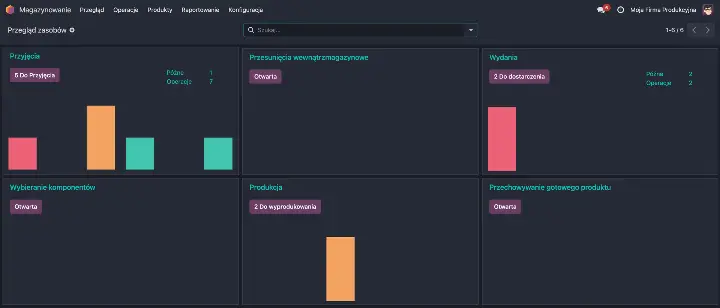 Image 1. Warehouse Management Dashboard – Overview of all operations.
Possible operations include:
- Receipts – Expected deliveries from suppliers.
- Internal Transfers – Movements within the warehouse.
- Delivery Orders – Shipments to customers or transfers to another warehouse.
- Pick Components – Issuing components to production (Warehouse -> Production).
- Manufacturing – Goods currently being produced.
- Store Finished Product – Transport orders for manufactured goods (Production -> Warehouse).
It is possible to create custom operations, which will appear as identical tiles on the dashboard. The ones defined here are standard operations for a small warehouse with a three-step production control (Pick - Manufacture - Store). Furthermore, you can configure routes that include, among others:
- Quality Control.
- Issuing components to subcontractors.
- Inter-warehouse transfers.
The list of shipments is also available in a List View (designed for office staff). This ensures you always have an up-to-date overview of what is pending transport, what has departed, and what is ready for release. The list preview looks like this:
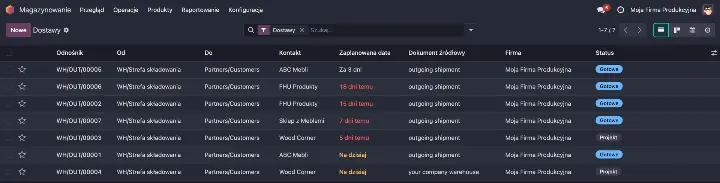 Image 2. Delivery Orders List View.
To see a full overview of what, where, and when we plan to transfer, navigate to the list view. You can access the operations list view by clicking:
- The "5 To Receive / Deliver / Manufacture" button – the list will contain transfers ready for execution.
- The Red / Orange / Green column – you will be redirected to the list of transfers with a scheduled date corresponding to that color.
- The "Late" / "Operations" links – you will be taken to the list of late transfers or all operations of a given type, respectively.
Warehouse Transfer Management – From the Shop Floor Perspective
All transfer orders in the system are accessible in a module dedicated to warehouse workers: Barcodes. It can be accessed via a mobile browser or by downloading the dedicated app. All scheduled transfers are visible on the mobile device, minimizing the risk of overlooking any goods. This provides you with full control and insight into the current warehouse situation directly from the office..
If a critical order arrives, it can be starred – this will move the transfer to the very top of the list (on all views), signaling it as a priority. By default, orders are sorted from oldest to newest. The warehouse worker has a list of transport orders in their working panel. Here is the dashboard view on an Android device:

Image 3. Odoo Barcodes app view in an Odoo-based WMS. List of operations.
Transport operations are organized by operation type. For an employee handling customer shipments, only those specific operations will be relevant. In the application shown above, clicking "DELIVERIES" will reveal the list of operations:

Image 4. List of items ready for delivery. Orders can originate from the system (based on automated routes) or be issued manually.
Workflow
Odoo ensures the highest standards in warehouse operations. Products, warehouse locations, and shipments – a specialized barcode label can be printed for each of these objects. This streamlines work and provides an additional checkpoint against human error (eliminating manual entry).
For scanning, you can use any device with a camera or a professional barcode scanner.
Image 3 shows the list of transfers. With a large volume of orders, searching for a specific one can be tedious. A shipment label includes a barcode – scanning this code while in the view shown in Image 3 will instantly display that specific order. Opening this transfer will show the list of products included in the operation. In the Odoo Barcodes WMS app, it looks like this:

Image 5. Preview of items to be released in a specific order.
Now, simply confirm that all items have been supplied for release – this can be done by scanning the barcode of each package. This provides a final verification step to ensure that the goods being shipped are exactly what the customer ordered.

Image 6. Mobile scanner view – reading a location label.
Is an Odoo-based Warehouse Management System the right solution for your company?
As you can see, Odoo is not just a simple inventory program, but a full-fledged WMS that scales with your business. From simple "one-step" receipts to advanced routes with quality control and barcode support on the shop floor.
If you want to verify if Odoo can handle the specifics of your warehouse, schedule a Needs Analysis. We will discuss your logistical challenges and together evaluate if Odoo is the right direction for your company.